
Samsung Magician is the free software provided by Samsung to manage its SSDs. Version 9 has integrated the Data Migration and Portable SSD applications, changing the approach to configuration. This article measures the real impact of each key parameter and identifies the settings that matter.
Samsung Magician Features: Real Impact on SSD Performance
Not all options in Samsung Magician are equal. Some directly affect throughput, while others are diagnostic with no effect on speed. The table below ranks the main functions according to their concrete effect.
| Function | Type of Action | Impact on Performance |
|---|---|---|
| RAPID Mode | RAM cache to speed up reads/writes | High (significantly improved sequential reads) |
| Over Provisioning | Reserved space for the SSD controller | Medium to high (endurance and sustained write speed) |
| Firmware Update | Bug fixes, internal optimizations | Variable (sometimes fixes throughput drops) |
| Performance Benchmark | Integrated speed test | None (diagnostic only) |
| S.M.A.R.T. Check | Reading health indicators | None (monitoring) |
| Diagnostic Scan | Block integrity analysis | None (problem detection) |
The two settings that actually modify throughput are RAPID Mode and Over Provisioning. The rest serves to monitor the disk’s status or update the firmware, which remains useful for reliability but does not improve everyday speeds.
Before changing anything, it is useful to learn everything about Samsung Magician software to understand the overall architecture of the tool and the supported SSDs.

RAPID Mode on Samsung SSD: Configuration and Limits to Know
RAPID Mode uses a portion of the system’s RAM as a cache buffer for the SSD. Sequential reads and writes are accelerated, sometimes dramatically in synthetic benchmarks.
Activation is done with one click in the dedicated tab of Samsung Magician. A restart is required for the mode to take effect.
Critical Constraint Before Firmware Update
Disable RAPID Mode before any firmware update. The RAM cache can interfere with the firmware writing process and cause errors. Samsung Magician’s documentation explicitly mentions this precaution.
On the other hand, for daily office or creative use, RAPID Mode provides a noticeable gain on large file transfers. For random workloads (launching applications, compiling), the benefit is less clear as the RAM cache does not cover all access patterns.
When RAPID Mode Does Nothing
- On a system with less than 4 GB of RAM, the cache uses resources that the rest of the operating system lacks
- On a recent NVMe SSD like the 990 PRO, the native speeds are already very high, and the marginal gain from RAPID Mode becomes negligible
- In a multi-drive setup with a system SSD and a storage SSD, activating RAPID Mode on the storage drive alone does not speed up Windows boot
Over Provisioning SSD: The Setting That Preserves Speed and Endurance
Over Provisioning involves reserving a fraction of the SSD’s space so that the controller can manage garbage collection and wear leveling more efficiently. Samsung Magician allows you to configure this reserve directly from its interface.
A well-sized Over Provisioning maintains write performance over time. Without this reserve, an SSD filled to over 80-90% sees its write speeds drop significantly as the controller lacks free blocks for its internal operations.
Samsung generally recommends reserving about 10% of the total capacity. For a drive intended for heavy write loads (video editing, databases), increasing this value remains relevant.
Configuring Over Provisioning in Magician
In the Over Provisioning tab, select the target SSD. A slider allows you to adjust the size of the reserved partition. The software displays the remaining usable space in real-time. Confirm, and the change is applied without a restart.
The operation does not delete existing data, but the reserved space is no longer accessible as user storage. Therefore, plan for this margin right from the installation of the drive to avoid having to move files later.
Thermal Throttling and NVMe SSD: What Magician Doesn’t Fix
Samsung Magician monitors the SSD temperature via S.M.A.R.T. data, but it cannot prevent thermal throttling. On an NVMe SSD like the 990 PRO, adequate cooling is as important as software configuration.
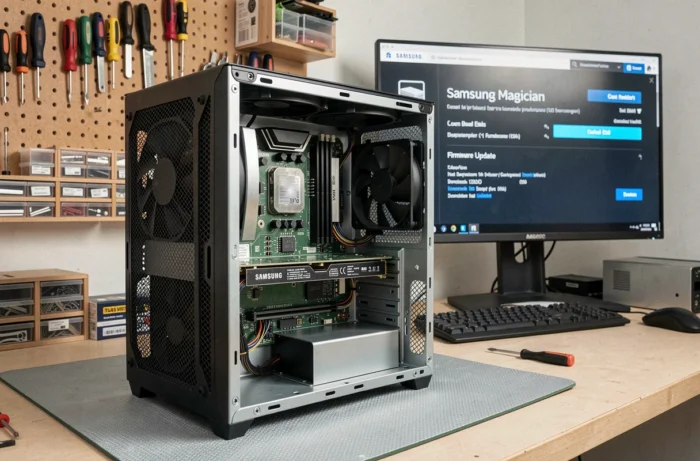
The manual for the Samsung 990 PRO reminds that an M.2 heatsink is recommended to maintain sustained performance under prolonged load. Without a heatsink, the controller automatically reduces speeds when the temperature exceeds a certain threshold, negating the gains achieved by RAPID Mode or Over Provisioning.
Checking the temperature in Magician after a benchmark is a good practice. If the displayed value approaches the high limits, no software setting will compensate: the solution is physical.
Samsung SSD Firmware: Why Updating Sometimes Changes Everything
Updating the firmware via Samsung Magician fixes bugs that can degrade performance invisibly. A faulty firmware can cause random slowdowns, abnormal latencies, or compatibility issues with certain versions of Windows.
The procedure is straightforward: in the Update tab of the software, Magician checks the installed version and offers the latest firmware. Back up your data before any firmware update, even if the risk of loss is low.
- Disable RAPID Mode before starting the update, as mentioned earlier
- Do not cut power during the process, as this could render the SSD unusable
- Restart the system after the update for the changes to take effect
Version 9 of Samsung Magician automatically detects Samsung portable SSDs in addition to internal drives, simplifying management for users with multiple models.
Configuring Samsung Magician boils down to two active settings (RAPID Mode and Over Provisioning) and regular maintenance (firmware). The rest of the interface serves for diagnostics. For recent NVMe SSDs, the limiting factor is often thermal, not software. Adding a few euros’ worth of M.2 heatsink to a 990 PRO can maintain speeds where all software settings fail.